Heartbleed and NeatSchool

Screen Shot 2014-04-14 at 12.45.05 PM

Like a huge number of sites and services on the Internet, we do not believe that the heartbleed vulnerability was exploited against our service, but we have taken all the necessary measures to address and prevent the possibility of being exploited in the future. You can always check the security posture of NeatSchool or other services you use here.

The Heartbleed vulnerability gives me one more opportunity to reiterate how important it is to enable multiple factor authentication as we have advocated in a previous post. Google stated that changing passwords because of heartbleed is not necessary for Google users but I recommend that this is a good time to change it anyways.


Attendance from your Mobile Phone


Image

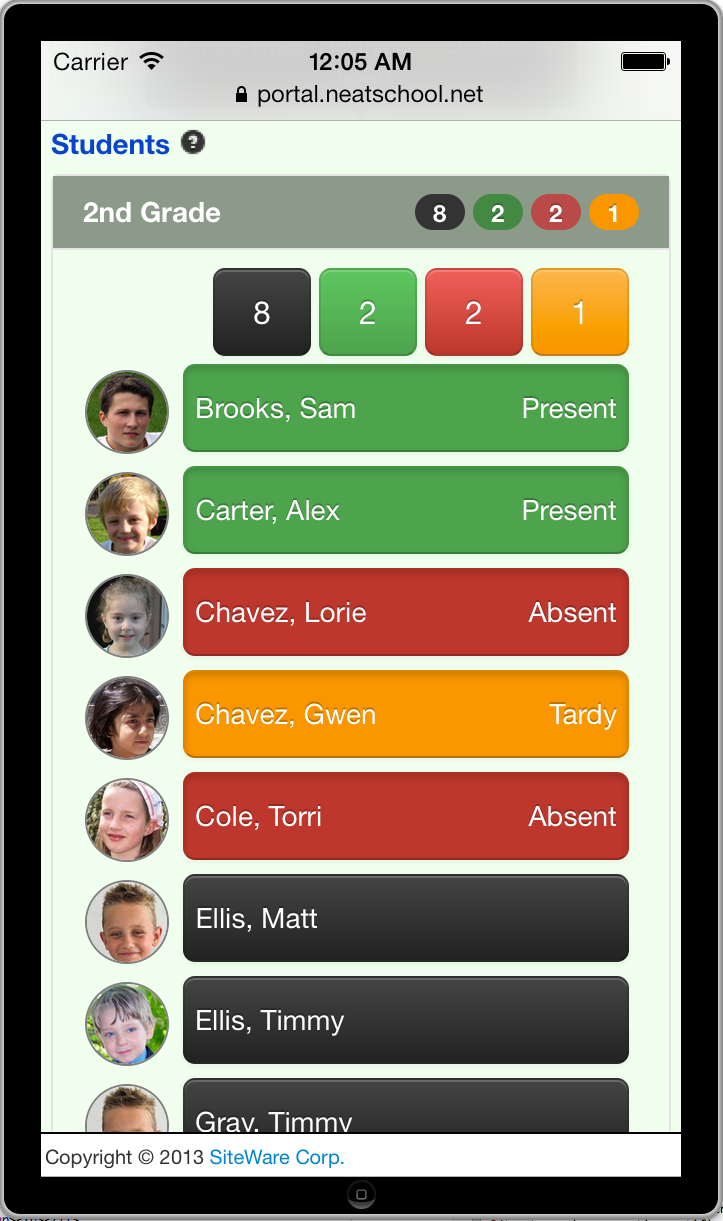
Teachers can now take class attendance from their mobile phone. Each student can be classified as Present, Absent or Tardy. The attendance becomes part of the student history. An attendance report can  be downloaded that shows the attendance record for each student in the class in a certain period.

We have made a short screencast that explains in detail how to take attendance and generate reports. You can find the video screencast link from the Help section in the NeatSchool Dashboard, or contact us to share the link with you.

New Screencasts on how to use Stations

Screen Shot 2014-02-20 at 11.57.13 AMNeatSchool Checkpoint and Classroom stations are tablets or PCs deployed in your premises that serve multiple purposes. First, they automate and move online the sign-in and out process for both Parents and Staff Members. They eliminate the need to print and make sheets available and automatically calculate the staff hours for payroll. Second, they provide a Student Roster including the always most up to date emergency contact and allergies/medication information. Finally, in a classroom setting, staff can use  to report events and activities as they happen and keep parents, students and other staff members on the same page.

We recently posted two YouTube screencasts on how to set up a station and how a Staff Member or Teacher can use it. You can find the screencasts in the help section of the Dashboard or e-mail us for the links.

Dealing with Multiple Google Accounts

Google_Chrome_and_Share_Chrome_with_other_people_-_Chrome_HelpToday I want to address an issue that arises with users who use multiple Google accounts. You might be in that situation if you use Google with both a work and a personal account.

NeatSchool uses Google Accounts to authenticate users. We have blogged before, and we will blog again, why this has been a great decision that improved both security and convenience for our users.  If you only have one Google account you can ignore the rest of this post, but do finish this paragraph because you might be using multiple Google accounts without realizing it. Most people end up using multiple Google accounts because they need one for personal reasons and one or more for work. In fact, you might not even realize that your work account is really a Google account. Many companies use Google for their e-mail service, so although your user name does not end in gmail.com it might still be a Google account.

Google has over the years made many improvements to Google accounts. Their goal is to be able to have users log in into one or more accounts transparently. However, most users find this very confusing and it also does not work yet with all their services. When logging in to Google all the tabs in your browser and all the other browser windows you open use that account. If you later log in with a second account most Google services remember that you have two accounts; yet only one is active at a time. If you try to open a NeatSchool session it will use the account that is currently active that might not be what exactly you want to do. So what is the sane thing to do?

Here is what we recommend: Google Chrome has a little advertised but great feature called “Support for Multiple Users”. By setting up this feature you can start a browser window using one Google account that is independent from other browser windows. Whatever you do in that browser window stays in that browser window. You can distinguish which browser window is which because there is a small icon or text that appears at the top right of the browser window and tells you what you use that browser for. So, you can use one such “chrome user” window for each of your Google accounts.  This will not only help you keep your sanity, it will also guarantee isolation between work and personal. You will never be embarrassed again when personal stuff pops up in your browser while you show something to a colleague because it will not happen, work stuff will stay in the work browser window and personal stuff will stay in the personal browser window history. You just need to recall to pick the right browser window before you start a browsing task.

So how do you start using this great Chrome feature? Click here for directions or search for “Chrome multiple users” in your favorite search engine.

Issuing Forms 1099 with NeatSchool

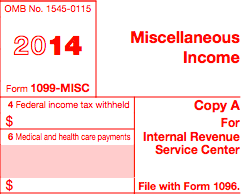
www_irs_gov_pub_irs-pdf_f1099msc_pdfMost U.S. organizations have to issue 1099 forms to vendors they paid more than $600 during the calendar year. You should consult your accountant for all the details but pretty much anybody who provided your organization a service and is not incorporated as an S or C Corporation needs such a form. The IRS makes clear that is the responsibility of the payer to track the amount(s) and report by January 31st.

NeatSchool financials have many ways to help you keep track of and issue 1099s:

  1. Every Partner/Vendor record has room for an SSN or EIN
  2. The records also have a checkbox on whether the vendor requires a 1099
  3. There is a report called “Expenses by Vendor” that shows the total amount you paid to each Vendor you worked with in a certain period
  4. The “Expenses by Vendor” report dialog box allows for a report that includes all the information you need to have 1099-MISC and 1096 issued.
  5. Finally, we support certain pre-printed forms and we can print the 1099s directly on them.

If you did not keep your financials in NeatSchool in 2013, it is not too late to start for 2014!!!

Keeping your e-mail Looking Good as you Copy and Paste

One text formatting tip that not too many people seem to know. It relates to NeatSchool because some times it causes e-mail messages with improper format.

When you cut/copy & paste content from one application to another these days, the default behavior of the operating system is to move not only the contents but the formatting as well. Many times this causes awkward looking messages where the font changes in the middle of the message. I am happy to share that most applications have a way to paste only the content of a paragraph. For instance, when you use NeatSchool with one of these preferred browsers:

• In Chrome on Windows you do that by typing Ctrl-Shift-V
• On Safari and Chrome on a Mac you do that by selecting the menu entry “Edit>>Past and Match Style” or Command-Shift-V

If you use another environment search on Google/Bing or ask around to find how you do paste only the contents!!

10 Tips on what twitter taught us about communication

NeatSchool provides you with a great e-mail based tool to communicate with your school community. You can customize the audience, reach large populations and do all that in a timely fashion. However, I want you to warn of one thing: Parents might not find the time to read your e-mail. If you are new to e-mail you might be wondering how this is possible. You get an e-mail from your child’s school and you will not read it? Well, you are right…. but you need to put this in context. Today’s parents tend to get 100s of e-mails. Work e-mails, personal e-mail, facebook activity, twitter activity, RSS news feeds many times arrive in one Inbox. And like you, reading e-mail takes time and  is not considered part of the job, is considered just a prerequisite!!

So what are you to do? You need to remember that your goal is to get your message across. This might not be the same as your audience reading your whole e-mail. So how do you make sure your message gets across to as many recipients as possible? Here are some tips you need to keep in mind when you send your school communication through e-mail:

  1. Keep your e-mails short and to the point.
    • Avoid packing many subjects and action items in one e-mail
  2. If you expect action to be taken as a result of reading the e-mail spell it out at the beginning.
  3. For e-mails longer than two lines, include a one line summary.
    • Why? If the parents are just skimming over e-mail they might read the summary line and move on. They might never come back to read the whole e-mail
  4. Use the whole subject line, this might be the only line people read
    • NEVER leave the subject line empty, well NeatSchool protects you from that
  5. Do not send e-mail too often. People will start ignoring it
  6. Limit the recipients only to the ones that need to receive it.
    1. The NeatSchool mass e-mail features allow you to easily tailor your recipients.
  7. Use bold typeface in a few places, to hightlight the important stuff or get people who are just skimming the message to home into something
  8. If you address the message to more than 2-3 recipients, put all the recipients in bcc:
  9. Ask your recipients to reply to your e-mail, if you need their consent on something. Never assume they have read the e-mail
  10. In addition to e-mail use other ways to reach your audience, including direct face-to-face communication

Finally, do not get offended if one of your e-mails was skipped, it happens to everybody once in a while.